
Walio Skener for Android
Stamps right at the till
The app runs in the background on the Android tablet that runs your till. Staff scan a customer's loyalty card using the USB scanner. The stamp is added automatically, and a banner appears over the till to show the result. There's no need to switch between apps or integrate Walio with your till.
Android 8 or later · included in every paid plan · APK 0.2.0
What you need
-
An Android tablet
Android 8 or later, running your till software. This isn't supported on iPads.
-
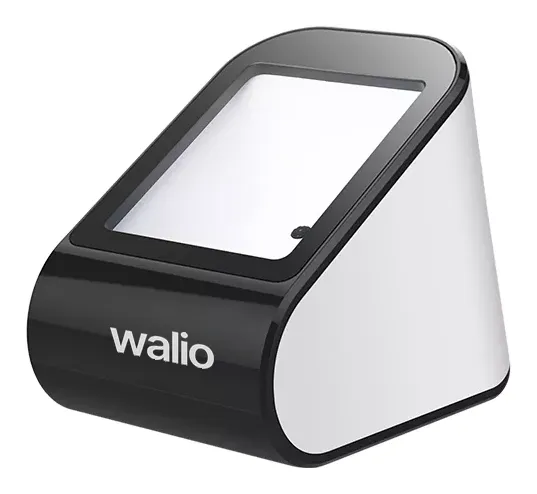
A USB QR code scanner
Set to USB COM mode (also known as USB Virtual COM). Most 2D barcode scanners support this mode.
-
A powered USB hub
Tablets usually have only one USB port. A powered hub lets you connect both the scanner and the charger, so the tablet can stay plugged in throughout the day.
-
A Walio account
The tablet is paired with your business location and counts towards your plan's scanner-device limit.
Step-by-step setup
Start scanning in ten minutes
-
Connect the hub
Plug the hub into the tablet's USB-C port. Then connect the charger and the scanner to the hub. If you're using your own scanner, make sure it's set to USB COM mode: scan the USB COM or USB Virtual COM code in the scanner's manual.
-
Download and install the app
On the tablet, download the app using the button above and open the downloaded file. Android will ask whether to allow your browser to install unknown apps. Allow it. If Google Play Protect appears, tap More details, then Install anyway. The app isn't available on Google Play yet, so Android may display a warning.
The wording may vary depending on your Android version.
-
Grant three permissions
Open Walio Skener. Under Tablet settings, tap Allow next to each item:
- Display over other apps: this permission is required to show the result over your till.
- Notifications.
- Unrestricted battery.
On Samsung, Xiaomi and Huawei tablets, also set the app's battery usage to Unrestricted in the battery settings. Otherwise, the system may put the app to sleep.
-
Allow the app to open automatically
When you connect the scanner, Android asks whether to open Walio Skener. Select Always and confirm with OK. Otherwise, Android will ask again after every tablet restart.
-
Pair the tablet with your location
In the Walio portal, go to Settings → Scanners and staff → + Add a new device. Select your location, then choose Another phone or tablet. Scan the QR code shown on the screen using the scanner, not the tablet's camera. A notification on the tablet confirms that pairing was successful.
-
Test the scanner
Scan a customer's loyalty card. A banner showing +1 stamp will appear over the till. Then restart the tablet and scan a card again. The app should launch automatically.
Troubleshooting
- The app shows “Scanner: not found”, and the code is entered into the till
- The scanner is in keyboard mode. Switch it to USB COM mode as described in step 1.
- A scan triggers only a notification, not a banner over the till
- The Display over other apps permission is missing. Enable it in the app under Tablet settings.
- The scanner doesn't respond after the tablet restarts
- Open the app manually once and make sure unrestricted battery usage is enabled for it.
- Several USB devices are connected and the app has selected the wrong one
- In the app, go to USB devices and tap Use next to the scanner.
Frequently asked questions
No. Walio Skener is included in every paid plan. The tablet simply counts towards your plan's scanner-device limit.
No. The app doesn't communicate directly with your till; it simply displays the result over it. This means it works alongside any Android till app. Some till apps restrict overlays, so test a scan before using it in a live environment.
Stamps and visits are queued and recorded as soon as the connection is restored. Nothing is recorded twice.
No. Customers keep using their Wallet pass as before. Walio Skener is for staff only.
We'll help you set it up
Tell us what the app shows, ideally with a screenshot. We'll get back to you and help you resolve the issue.